Start HereInstall and pin the PitchTrack extension
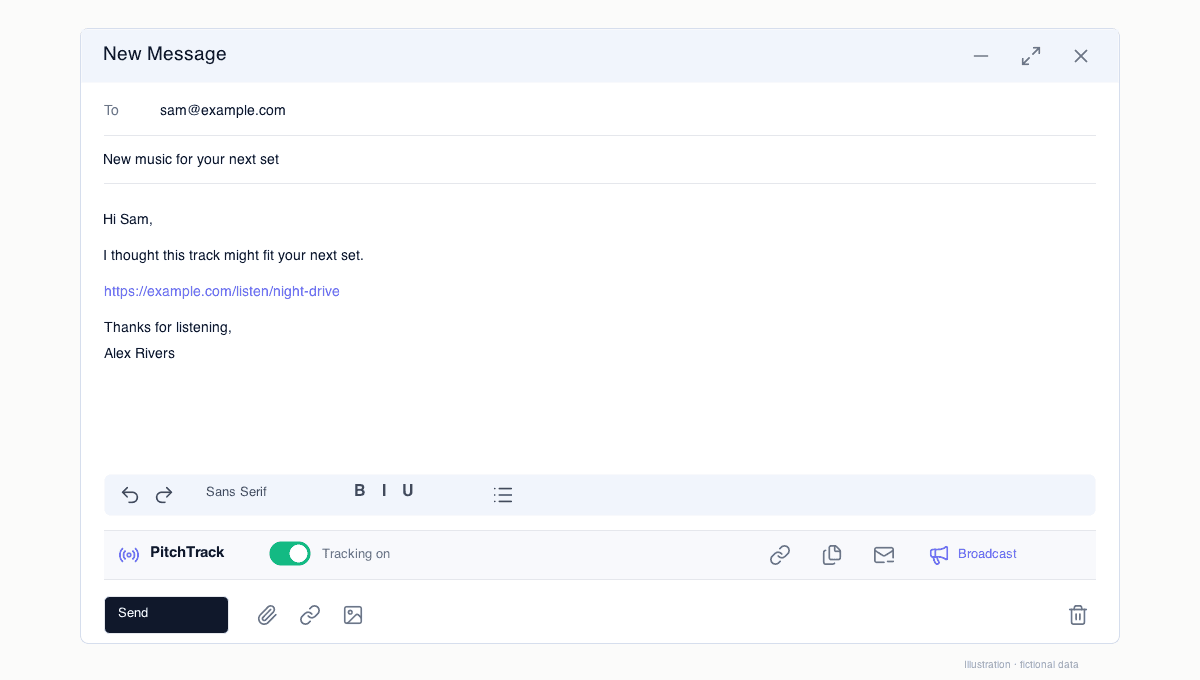
Set up the extension so it appears correctly in Gmail.
Who this is for
- New users installing PitchTrack for the first time.
- Users who logged in but do not see PitchTrack controls in Gmail compose.
- Teams creating a simple setup checklist for new staff.
Before you start
- Use Chrome (or a Chromium browser like Edge/Brave).
- Sign in to the Gmail account you want to send from.
- Close extra Gmail tabs to avoid old cached sessions.
Step-by-step workflow
- Install PitchTrack from the Chrome Web Store.
- Pin the extension so the icon is always visible in your browser toolbar.
- Open Gmail in a fresh tab and hard refresh once (Cmd/Ctrl + Shift + R).
- Open a new email draft and confirm PitchTrack controls are visible.
How to verify success
- PitchTrack controls appear every time you open a new draft.
- The extension icon stays visible and active in the browser toolbar.
- You can open dashboard pages from /dashboard without login loops.
Common mistakes / troubleshooting
- If controls are missing, refresh Gmail and open a brand new draft.
- If still missing, disable/re-enable the extension and restart browser.
- If still broken, send a screenshot of your extension list via Contact Support.
What to do next